Install the Altium Script
Feb. 13, 2026 · ~4 min read
The Traceformer Altium script exports your project as a complete package ready for automated schematic review. Follow this guide to download, install, and start using the script.
Download the Script
First, download the Traceformer Altium export script zip file. This package contains everything needed to export your project for review.
Download Script (v1.0.0) · View on GitHub
Compatible with Altium Designer 19 and later. The script is open source and available under the MIT license.
Unzip the Script
Extract the downloaded zip file to a known location on your computer. You should see three files: TraceformerQuickExport.dfm, TraceformerQuickExport.pas, and TraceformerQuickExport.PRJSCR.
Open Your Design Project
Open Altium Designer and make sure your design project is loaded. You should see your project and its source documents in the Projects panel.
Load the Script Project
With your design project open, load the Traceformer script project alongside it.
a. Open Project
Go to File → Open Project... from the top menu.
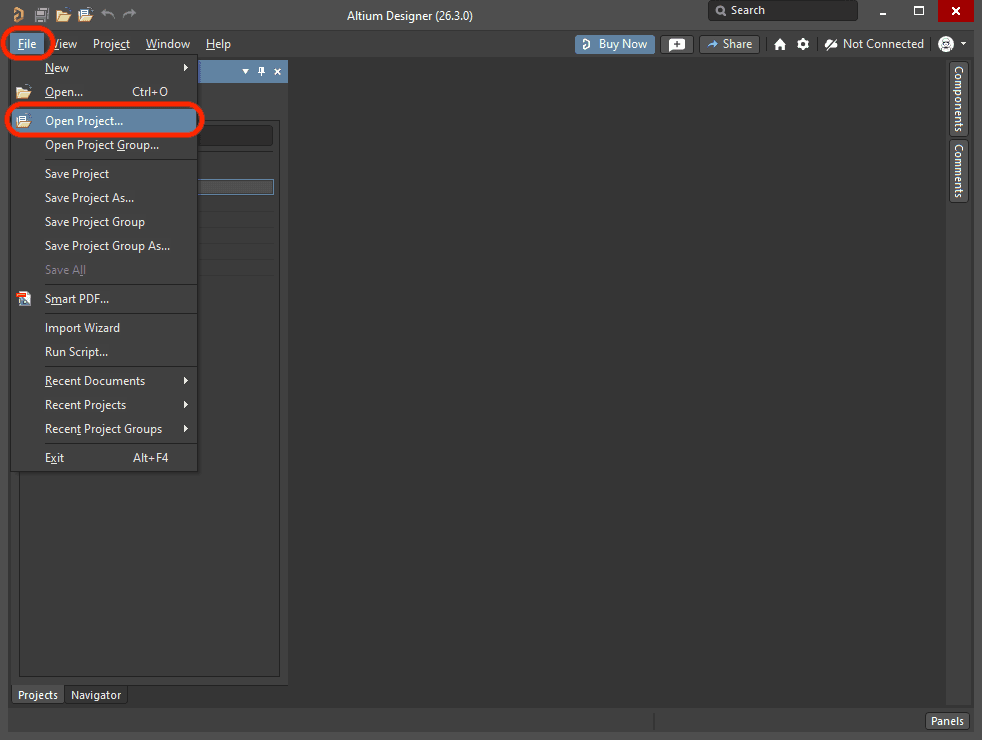
b. Navigate to the Script
Browse to the folder where you unzipped the script. Select the TraceformerQuickExport script project and click Open.
c. Confirm the Script is Loaded
The script project will appear in the Projects panel below your design project. You should see TraceformerQuickExport.PRJSCR with TraceformerQuickExport.pas listed under Source Documents.
Run the Export Script
a. Run Script
Ensure the project you'd like to export is in focus. Go to File → Run Script... from the top menu.
b. Select the Script
In the "Select Item To Run" dialog, select TraceformerQuickExport.PRJSCR. Click OK.
c. Export
The Traceformer export dialog will appear. Choose an output folder and file name, then click Export. The script will package your schematic, netlist, and project files into a single zip archive ready for upload.
Upload to Traceformer.io
Once you have your exported project file, upload it to Traceformer.io to start your automated review.
- Visit Traceformer.io in your browser and sign in or create an account.
- Drag and drop your exported zip file into the upload area, or click to browse.
- Attach any relevant datasheets for components in your design.
Traceformer.io will parse your project, cross-reference your datasheets, and run a comprehensive schematic review. Results typically appear within a few minutes.
Troubleshooting
Script project doesn't appear in the Projects panel
Make sure you opened the .PRJSCR file via File → Open Project..., not File → Open.... The script needs to be loaded as a project to appear in the panel.
"Select Item To Run" dialog is empty
Ensure the script project is loaded in the Projects panel. If it's not visible, close the dialog and load it via File → Open Project... first.
Export produces an empty or incomplete file
Make sure your schematic is saved and compiled before exporting. The script reads from saved files, so any unsaved changes won't be included in the export.